iPhone & iPad · Features
More features
Swipe gestures, timer since last cut, touch lock, Picture in Picture and language.
These features are optional. Only turn on what you really need – that keeps the screen tidy.
Swipe gestures
Swipe gestures trigger Companion buttons without looking closely – e.g. CUT with a swipe up.
- Open Settings → Advanced settings → MULTIVIEW · SWIPE GESTURES.
- Turn on Enable swipe gestures.
- Turn on a direction, e.g. Swipe up, and choose its Companion button. Optionally give it a name.
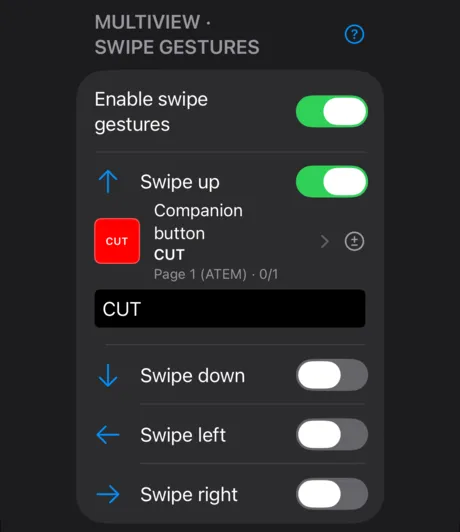
A simple tap still switches the camera. Swipe inside the picture, not from the edge – a swipe from the right edge opens ProPresenter.
Timer since last cut
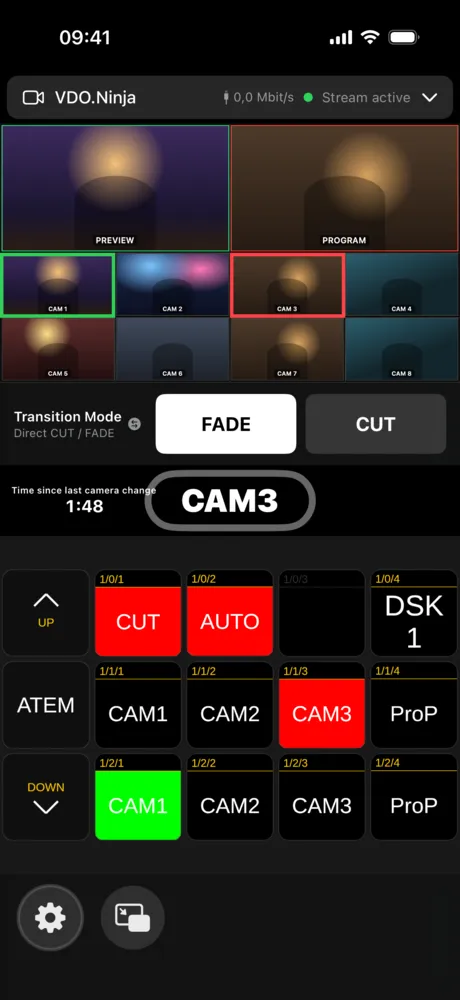
The timer shows how long the current shot has been on air, so no camera stays up too long.
- Turn on Settings → GENERAL → Timer since last cut.
- Open Timer since last cut – settings and choose at least two Companion buttons under MONITORED BUTTONS, e.g. your cameras’ program buttons.
Time since last camera change then appears next to the tally display.
Block hasty cuts
In Blockout buttons mode the app blocks further camera changes for a few seconds after each change (Blockout time (seconds), default 5). A blocked tap isn’t lost: it’s carried out automatically when the blockout ends.
Touch lock
So nothing gets switched by accident during the show:
- Enable lock (double-tap the gear) – after that, a double tap on the gear locks all touches. Another double tap unlocks.
- Lock all touch buttons – turns the app into a pure display, e.g. for an iPad used as a monitor.
You’ll find both under Settings → GENERAL.
Picture in Picture
With the button at the bottom left next to the gear, the multiview stays visible as a small window even when you open another app.
View and language
Under Settings → GENERAL you’ll also find:
- Hide emulator (multiview only) – just the picture, without Companion buttons.
- Emulator on top, multiview below – swaps the order.
- Language – English, German, French, Spanish or Chinese. Applies after restarting the app.