
iPhone & iPad · Getting started
Connect Companion
Connect Multiview Live to Bitfocus Companion so your taps reach the vision mixer.
Multiview Live doesn’t switch the mixer directly – it goes through Bitfocus Companion. Companion controls almost any vision mixer, plus PTZ cameras, recorders and much more. Whatever Companion can do, you can trigger from the app.
1. Prepare Companion
You need Companion 4.3 or newer.
- Settings → Protocols: turn on the HTTP API. The app uses it to press buttons.
- Settings → Protocols → Satellite: turn on button subscriptions. This lets the app see your buttons live – for the button picker and for tally.
- Surfaces → Emulator: create an emulator and copy its link, e.g.
http://192.168.1.20:8000/emulator/ABC123.
2. Enter it in the app
- Open Settings → COMPANION.
- Paste the emulator link. If
http://is missing, the app adds it. - After a moment you should see three green check marks.
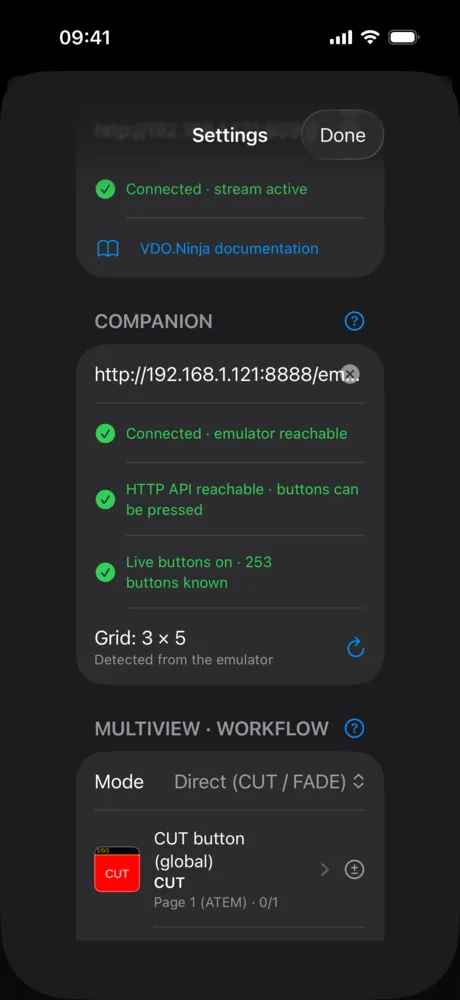
- Connected · emulator reachable – the Companion buttons appear on the main screen.
- HTTP API reachable · buttons can be pressed – switching works.
- Live buttons on – button picker and tally work.
The app detects the emulator grid (rows × columns) by itself.
Tip: Give the Companion computer a fixed IP address so the link still works after a restart.
Satellite port and manual grid
- The Satellite API uses port 16622. If you changed it in Companion, adjust it under Settings → Advanced settings → Satellite port.
- If the grid isn’t detected (Could not detect – adjust below), set rows and columns by hand.
Next: Set up the multiview.