
iPhone & iPad · Features
Set up the multiview
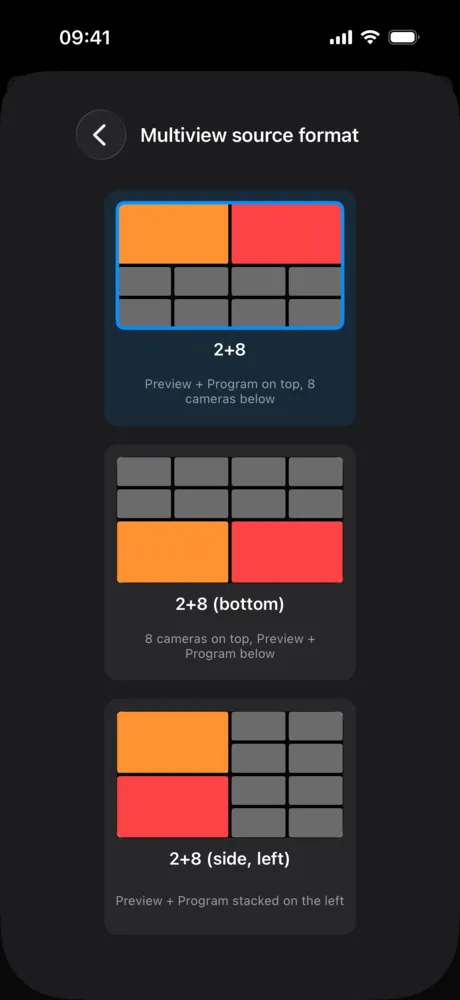
Choose the format and give each field a Companion button so a tap switches the camera.
For a tap on a camera to switch it, the app needs to know two things: how your mixer splits its multiview and which Companion button belongs to which field.
1. Choose the format
In Settings, open Choose Multiview Format and tap your mixer’s layout. On an ATEM this is usually 2+8: preview and program on top, eight cameras below.
2. Open setup mode
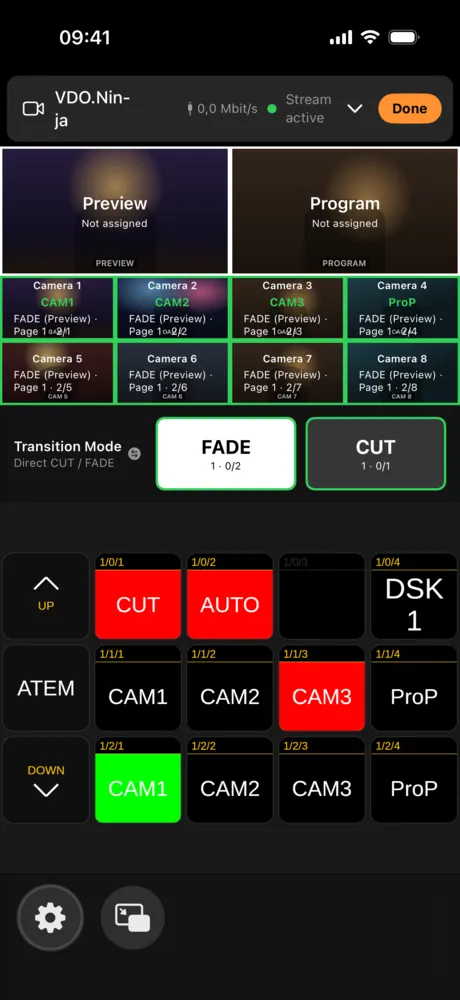
Tap the bar at the top to expand it, then tap Set up multiview. The fields now show which button is assigned to them, and an orange Done appears at the top right.
3. Assign buttons
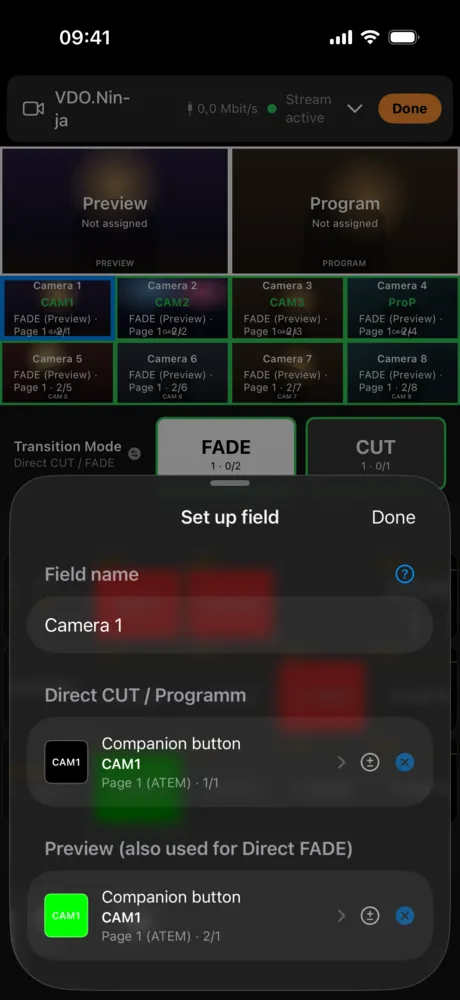
- Tap a camera field. Set up field opens.
- Optionally enter a Field name, e.g. “Pulpit”.
- Under Direct CUT / Programm, tap the button and choose the Companion button that puts this camera on air.
- Under Preview (also used for Direct FADE), choose the button that puts the camera on preview.
The picker shows your real Companion buttons live – with colors and labels. Use the search to find buttons by name.
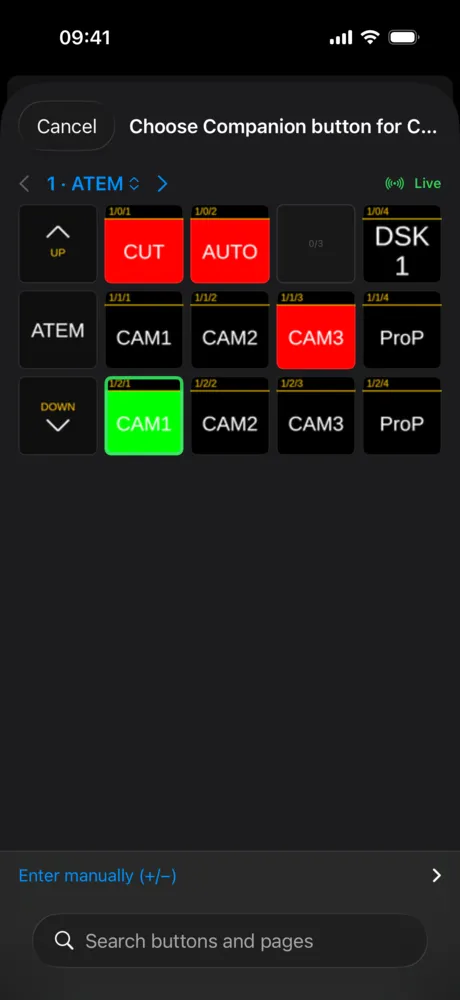
- Repeat for all cameras and tap Done. Everything is saved right away.
In this mode you also set the buttons for FADE and CUT: just tap them.
Tip: If your camera buttons are on Companion page 1 in row 1 (CUT) and row 2 (preview), there’s a shortcut: Settings → MULTIVIEW · WORKFLOW → Load default mapping …
Enter a button by hand
With Enter manually (+/−) you set page, row and column directly. This also works when the live button view isn’t available.