
iPhone & iPad · Features
Switching: CUT, FADE and preview
Decide what a tap on a camera does – cut right away, fade smoothly or put it on preview first.
What a tap on a camera field does is set under Settings → MULTIVIEW · WORKFLOW → Mode. To change it quickly, use the Transition Mode button to the left of FADE and CUT.
Direct (CUT / FADE)
A tap sends the camera on air right away. Whether it cuts or fades is chosen with the buttons next to it:
- CUT – hard cut: the app presses the camera’s Direct CUT / Programm button.
- FADE – smooth fade: the app puts the camera on preview, then triggers the FADE button.
The fastest mode – ideal when you’re alone at the camera.
PGM / Preview
A tap only puts the camera on preview. It goes on air when you press FADE or CUT. The label on the left then reads Perform Transition.
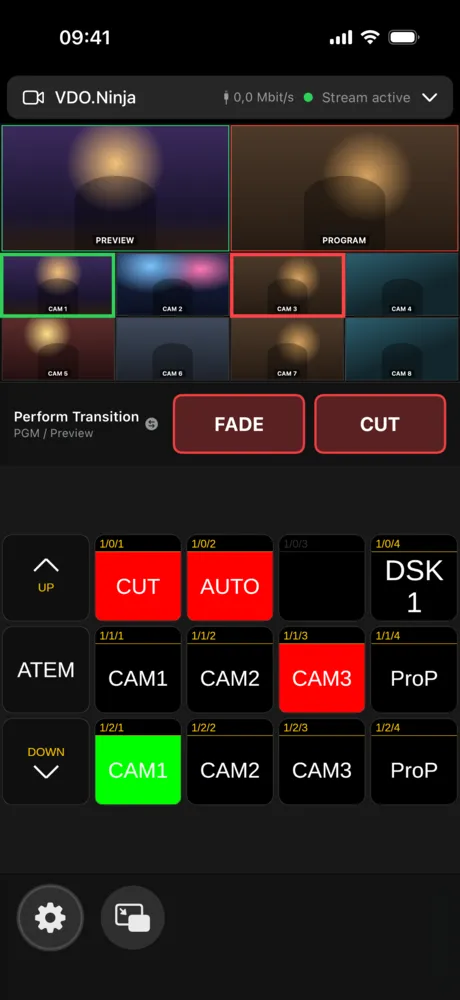
The safer mode when you want to prepare calmly.
What the borders mean
- Red border – this camera is on air (program).
- Green border – this camera is on preview.
The colors come straight from Companion.
Tip: An accidental tap can cut live. The touch lock prevents that.